



Stay informed with news, updates, and best practices on the ParentSquare blog.
Explore
Core Platform

Solutions for every role in your school community
Built for every type of school and district
See how we solve real challenges facing schools
Insights and ideas that add value to districts
A centralized hub for expert help and guidance


Author: Gary Lambert, Director of IT, Communications & Security, Beekmantown CSD
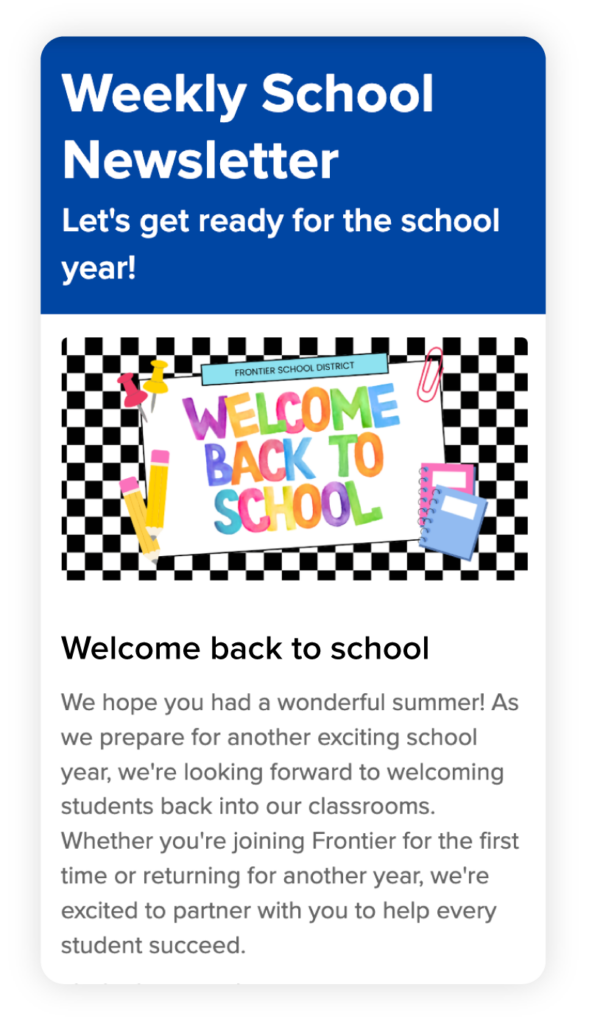
Canva Education is a fantastic tool. I use it. My team uses it. Chances are, your communications staff and teachers use it too. It is fast, intuitive, and produces visuals that look polished without requiring a graphic design background. To get the most out of using ParentSquare and Canva Education together, there are eight best practices worth knowing, especially if your goal is communication that reaches every family, on any device, in any language.
Canva is a great tool for creating engaging visuals, and it’s most effective when paired with ParentSquare’s native text editor. Including key information as text within your ParentSquare post helps ensure families using screen readers and other assistive technologies can access your message clearly.
What to do: Never let a graphic stand alone. Include the same key information as plain, native text directly in the body of your ParentSquare post so every family can access the message.
Canva makes it easy to create professional-looking communications, and a thoughtful accessibility review can help communications reach the widest possible audience. Taking a few extra steps before publishing can improve readability and usability for all families. Ensure that team members responsible for creating content are aware of WCAG 2.1 AA standards when developing assets for use in your parent communication platform.
What to do: When sharing important documents, review formatting, reading order, and document structure as part of your communications process.
When key information is embedded as an image or attached as a document, you aren’t able to take advantage of ParentSquare’s automatic two-way translation and mobile responsiveness. That immediately cuts off access for non-English-speaking households and families viewing updates on their phones with limited data.
What to do: Rely on the ParentSquare text editor for your actual messaging, since it gives families mobile-responsive layouts and real-time translation.
Canva offers thousands of beautiful templates. When selecting one for school communications, prioritize designs that make information easy to read across devices and for a wide range of audiences. Avoid decorative script fonts, small text under 12pt, and low-contrast color palettes that can make communications harder to read.
What to do: Stick to clean, sans-serif fonts, left-aligned text, and font sizes of at least 14pt.
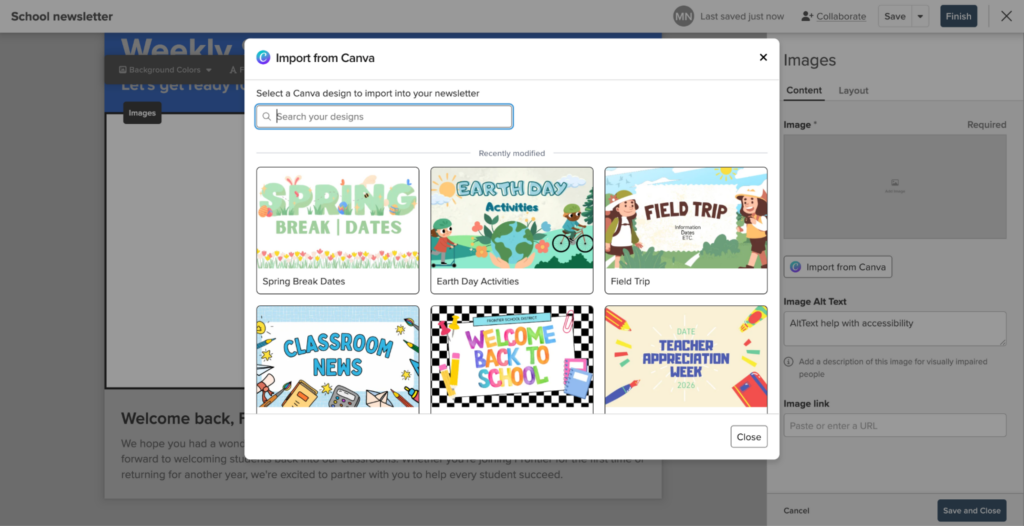
Canva’s Accessibility Checker provides valuable guidance and can help identify potential issues before content is downloaded. But automated tools cannot evaluate whether your text is actually comprehensible, and they cannot accurately predict how different screen readers will interpret a given layout. A clean automated pass should be viewed as one part of a broader accessibility review process.
What to do: Pair the automated tool with manual safeguards. Add descriptive alt-text to images, always provide a plain-text alternative, and have your formatting reviewed periodically by someone trained in WCAG 2.1 AA standards.
ParentSquare’s search function allows families to look up past announcements by keyword. The platform cannot index text that is locked inside an attached image or document. A parent searching for “immunization deadline” or “field trip permission” will never find your post if the details only exist inside a graphic.
What to do: Always type critical keywords, dates, and event titles into the ParentSquare post title and body so the message stays searchable weeks or months after it was sent.

Canva exports high-resolution graphics by default and makes it easy to compress images before export. Taking this extra step helps newsletters load faster and use less data for families in rural areas or on limited mobile data plans.
What to do: Compress images before uploading using Canva’s options under Share, or better yet, keep visual elements minimal and lead with text so the essential message loads instantly regardless of connection speed.
When each classroom, department, and office creates thousands of Canva templates, ParentSquare feeds can quickly become a varied mix of fonts, colors, and styles. Parents struggle to distinguish a critical district notice from a casual classroom update, and over time, communication fatigue can erode engagement.
What to do: Build a unified brand kit within Canva. Limit templates to a few standard layouts using your school’s approved colors and fonts. Visual consistency helps families instantly recognize official communications.
Canva is a powerful tool for creating engaging visuals for your school communications. It should support your ParentSquare communications by adding visual polish to a strong text-based foundation. Get your plain-text body copy right first, then use Canva to help make the message even more engaging and easy for families to access, understand, and act on.